Create and run
Quickly build and run MCP servers on your local machine.
Before you begin
- Follow the Get started guide to set up agentregistry and start the agentregistry daemon.
- Install
uv.
Create an MCP server
Agentregistry comes with built-in MCP server templates that you can use to quickly spin up MCP servers or customize them to your needs.
-
Create an MCP server. Enter an optional description, author name, and email, or skip these by pressing the return key.
The following command creates a
my-mcp-serverFastMCP server with an echo tool. When you run the command, amy-mcp-serverdirectory is created on your local machine that contains the scaffold for your MCP server.arctl mcp init python my-mcp-server -
Explore the MCP server scaffold that was created for you. You can optionally make changes to the files to customize your agent further.
ls -R my-mcp-serverExample output:
Dockerfile     mcp.yaml       pyproject.toml README.md      src            tests

my-mcp-server/src:
core    main.py tools

my-mcp-server/src/core:
__init__.py server.py   utils.py

my-mcp-server/src/tools:
__init__.py echo.py

my-mcp-server/tests:
test_discovery.py test_server.py    test_tools.py
File Description DockerfileThe Dockerfile to spin up and run your MCP server in a containerized environment. mcp.yamlThe MCP server configuration file that defines server metadata, transport settings, version, and other server-specific configuration. pyproject.tomlThe Python project configuration file that defines project dependencies, build settings, and metadata for the MCP server. README.mdAn introduction to the MCP server that you created with instructions for how to further customize it. srcA directory that contains the details of the MCP server, such as supported tools and the Python script to bootstrap and run the server. testsA directory that contains generated tests.
Build the image
To run the MCP server in an environment, you need to build the MCP server Docker image.
arctl mcp build my-mcp-serverExample output:
Building Docker image for python project...
#0 building with "desktop-linux" instance using docker driver

#1 [internal] load build definition from Dockerfile
#1 transferring dockerfile: 1.84kB 0.0s done
#1 DONE 0.1s

#2 [internal] load metadata for ghcr.io/astral-sh/uv:latest
#2 ...

#3 [auth] library/python:pull token for registry-1.docker.io
...
#24 unpacking to docker.io/library/my-mcp-server:0.1.0 0.9s done
#24 DONE 3.1s
✓ Successfully built Docker image: my-mcp-server:0.1.0
Run the MCP server
-
Start the MCP server. In your CLI output, note the MCP server URL. In the following example, the MCP server address is
http://localhost:57196/mcp.arctl mcp run my-mcp-serverExample output:
Running local MCP server: my-mcp-server (version 0.1.0) Using Docker image: my-mcp-server:0.1.0 MCP Server URL: http://localhost:57196/mcp Press CTRL+C to stop the server... 2026-01-27 22:12:40,261 - INFO - Loaded tool module: echo 2026-01-27 22:12:40,261 - INFO - 📦 Successfully loaded 1 tools 2026-01-27 22:12:40,647 - INFO - HTTP Request: GET https://pypi.org/pypi/fastmcp/json "HTTP/1.1 200 OK" ... -
Open the MCP inspector tool.
npx modelcontextprotocol/inspector#0.18.0 -
Connect to your MCP server. Enter the following details.
- Transport type: Select Streamable HTTP.
- URL: The MCP server URL that you retrieved earlier, such as
http://localhost:57196/mcp. - Click Connect.
-
Go to the Tools tab and select the
echotool. Enter any string in themessagefield, and click Run Tool. Verify that your string is echoed back to you.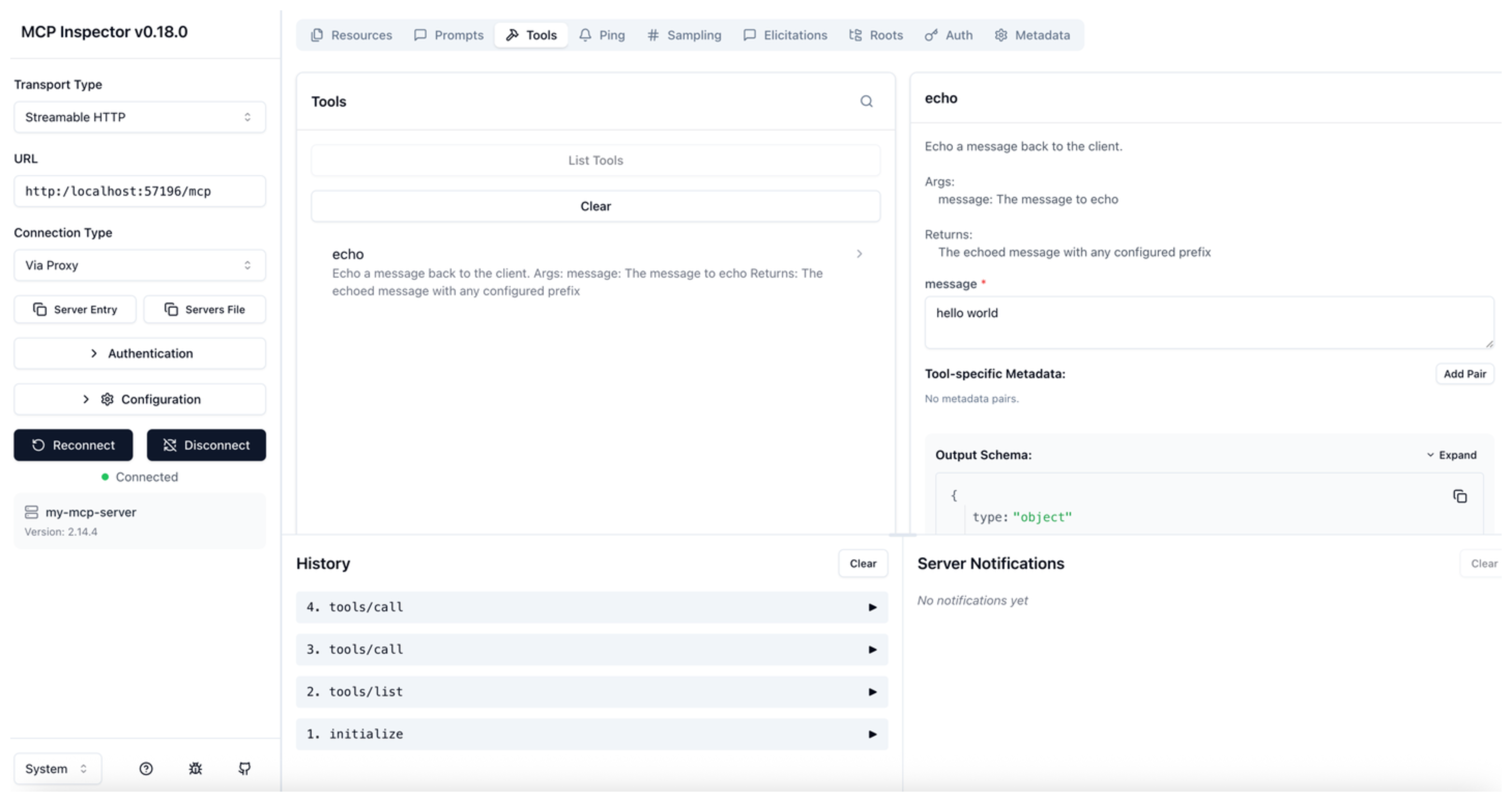
Next
Explore the following tasks:
- Add a tool to your MCP server.
- Publish the MCP server to agentregistry.